Preview changes
Removing a group in Jira is easy to do and hard to undo — you often can't see everything it touches first. The Preview changes tab shows the full blast radius of removing a group, then lets you remove it safely, one place at a time. Nothing changes until you explicitly confirm.
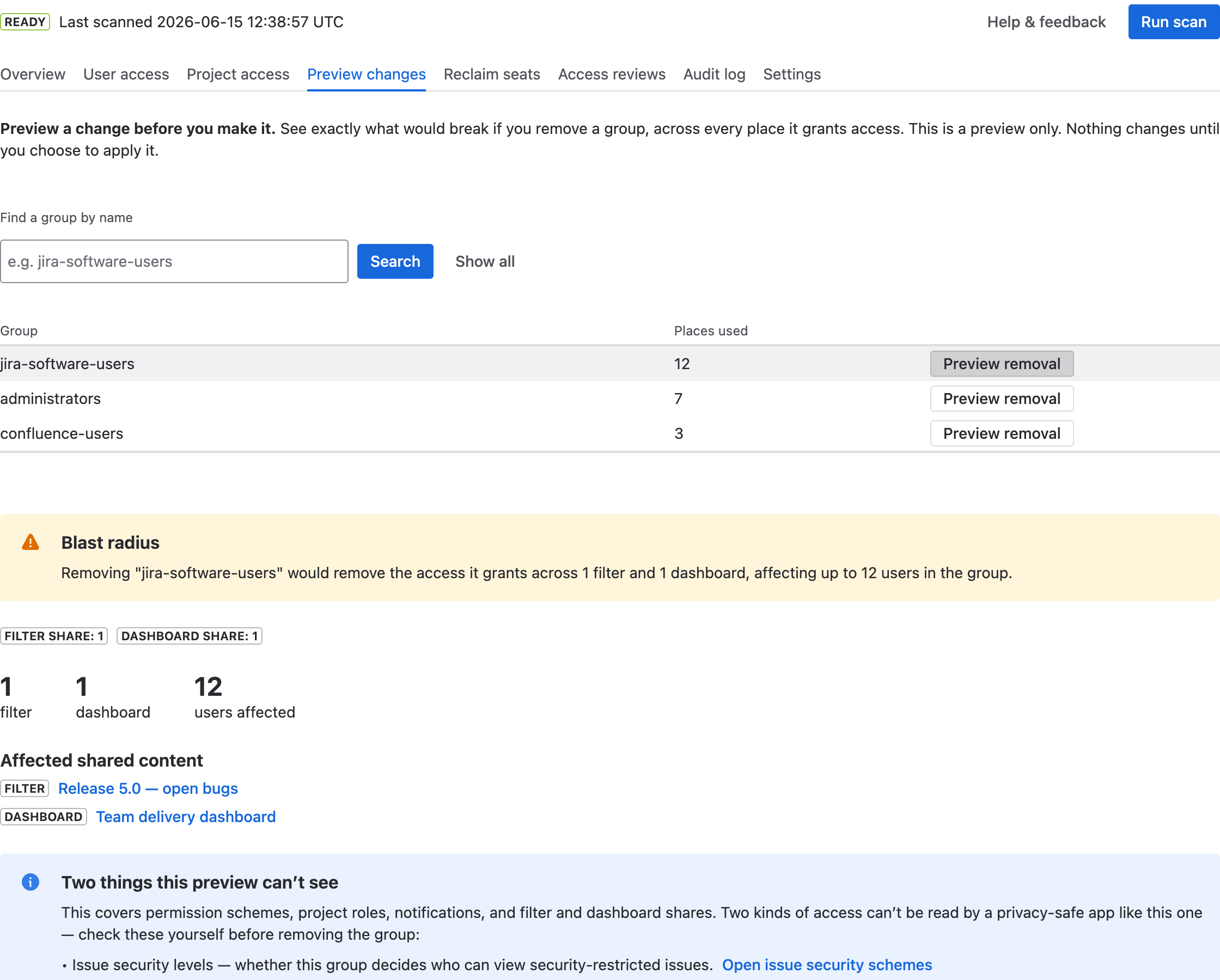
How to use it
- Find the group with Find a group by name (or Show all) and select Preview removal.
- Read the Blast radius — the projects, filters, dashboards, and number of users that would lose access, broken down by where the access comes from.
- When you're ready to act, select Show removable access and choose which removals to apply (see “Removing access safely” below).
Reading the blast radius
- A one-line summary, e.g. “Removing “jira-software-users” would remove the access it grants across 1 filter and 1 dashboard, affecting up to 12 users.”
- A breakdown by surface — permission scheme, project role, notification, filter share, dashboard share — and the affected projects (with links to their permissions in Jira), filters, and dashboards.
- A short caveat noting the two things a preview can't see (issue-security levels and global permissions), with links to check them in Jira.
Removing access safely
Select Show removable access to turn the preview into an action. The app sorts the removals into two kinds:
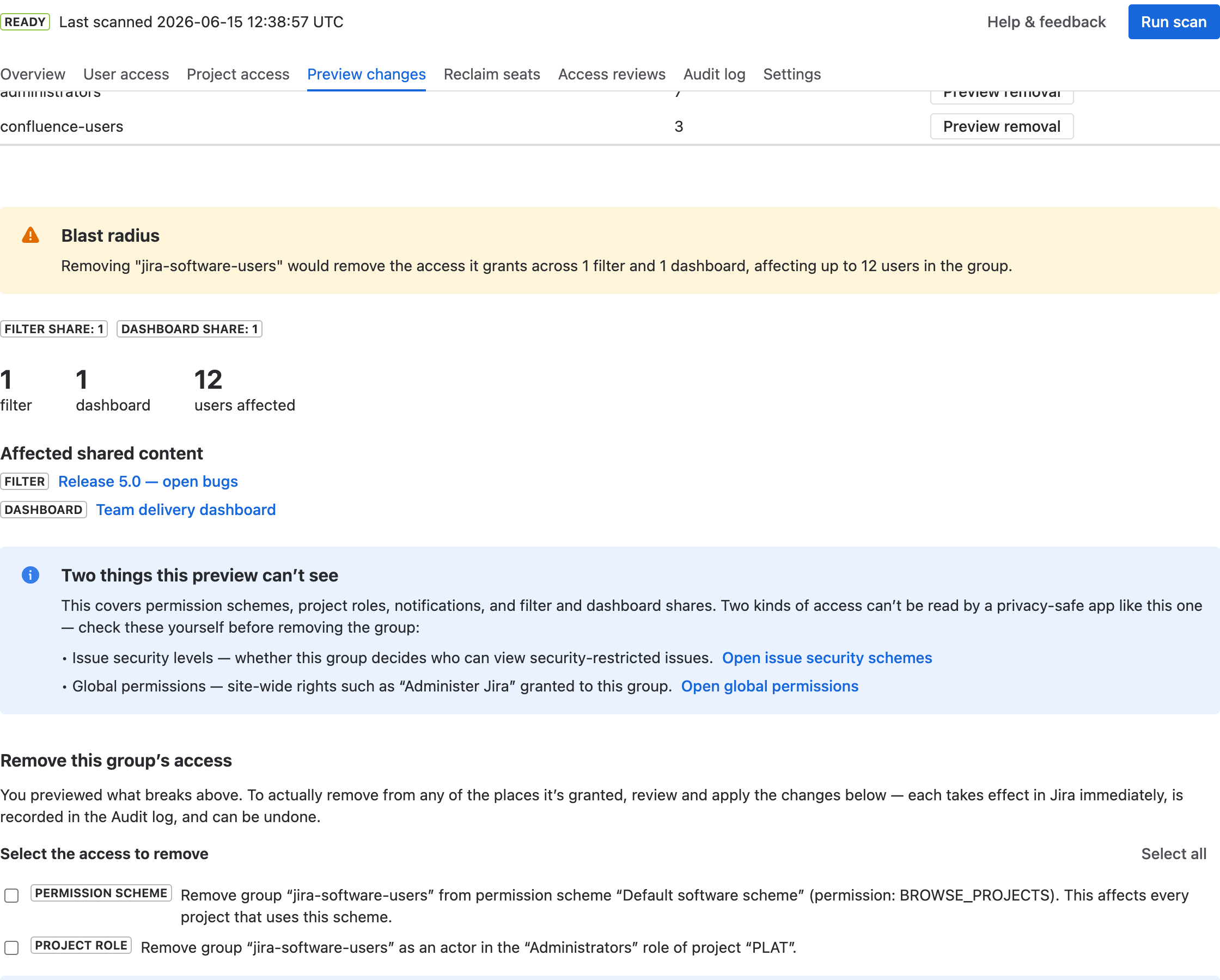
- Changes the app can apply — removing the group from a permission scheme or a project role. Tick the ones you want, select Review, confirm, and the app applies them in Jira immediately.
- Changes you do in Jira — filter and dashboard shares are owned by the person who created them, so an app can't change them. The app gives you a direct link and step-by-step instructions to remove the share yourself.
Every change is the classic preview → confirm → apply → undo loop: a confirmation dialog restates exactly what will change, the results show what was Applied, Already removed, or Failed, and each applied change has an Undo button (also available later in the Audit log).
Why the app shows stale data right after a change
The whole app reads the last scan (that's what keeps it fast). After you apply a change, the change is live in Jira immediately, but the rest of the app won't reflect it until the next scan. The app prompts you with a Run scan now button when this happens.