Access reviews
An access review (or “recertification”) is where a reviewer confirms each person still needs the access they have. The Access reviews tab runs these on a cadence: pick a scope, decide keep or revoke for each item, sign off as a human certification, and the app applies the revocations for you. Each review is exportable compliance evidence.
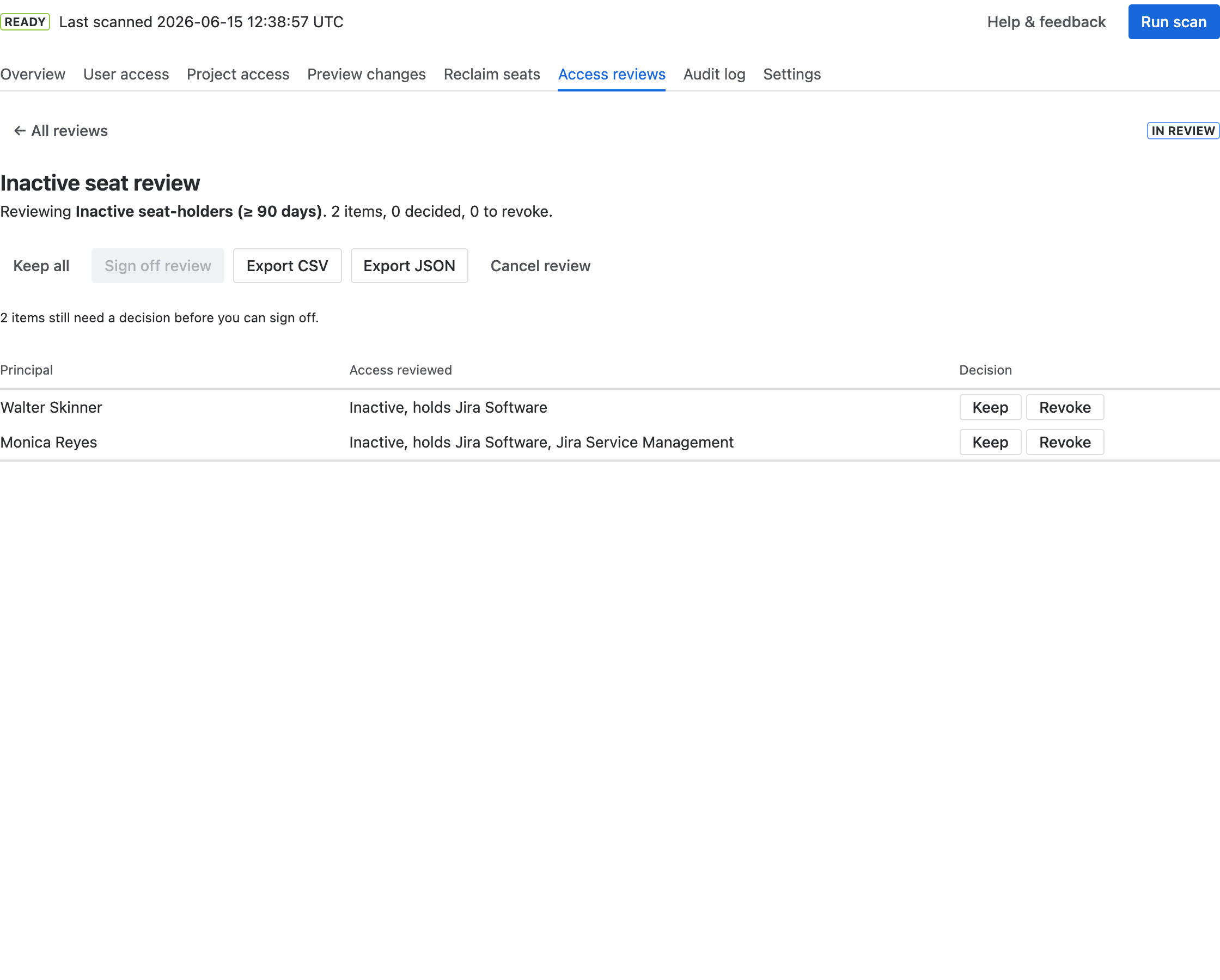
Each item gets a Keep or Revoke decision. Once every item is decided you sign off,
then apply the revocations — and export the whole review as evidence.
Running a review, end to end
- Select New review and choose a scope:
- Group membership — recertify who belongs to a group (revoke removes the member).
- Project access — recertify who can access a project (revoke removes them from the project's role).
- Inactive seat-holders — recertify inactive users who hold a licence (revoke reclaims the seat).
- For a group or project scope, pick the specific group/project. Optionally name the review and set a cadence (one-off, monthly, or quarterly — a repeating review reopens itself when due). Select Create review.
- For each item, choose Keep or Revoke (selecting again clears the decision). Keep all decides the rest in one click.
- When every item is decided, select Sign off review — this records who certified it, by name.
- Select Apply N revocation(s). A dialog restates what will change; confirm, and the app revokes the access. Then Export CSV/JSON for evidence and Close the review.
Reading a review
- The reviews list shows each campaign's scope, status (In review, Signed off, Executed, Closed), how often it repeats, progress (decided / total), and how many items are marked to revoke.
- Inside a review, the items table shows each principal, the access being reviewed, and its decision/outcome.
- A canceled review can be reopened; decisions are preserved.
When a revocation needs you to finish in Jira
Most revocations are applied automatically. But some access — a direct grant to a person, or externally-managed (SCIM) membership — can't be changed by an app. After you apply, a clear banner flags those items as “Revoke in Jira” with step-by-step instructions and a direct link, so nothing is silently left undone.